Before you start
- You have created an Monaio account.
- You have connected at least one bank account to Monaio.
- You have access to the AI assistant you want to use.

During setup, you will see the name Subaio Finance Data. This is the service behind Monaio. Use the same account to sign in.
Use ChatGPT in your browser. Access to custom connections depends on your account, plan and workspace rules. Monaio does not itself grant access to ChatGPT features. ChatGPT ↗
Open ChatGPT
Sign in to ChatGPT in your browser.
Add a connection
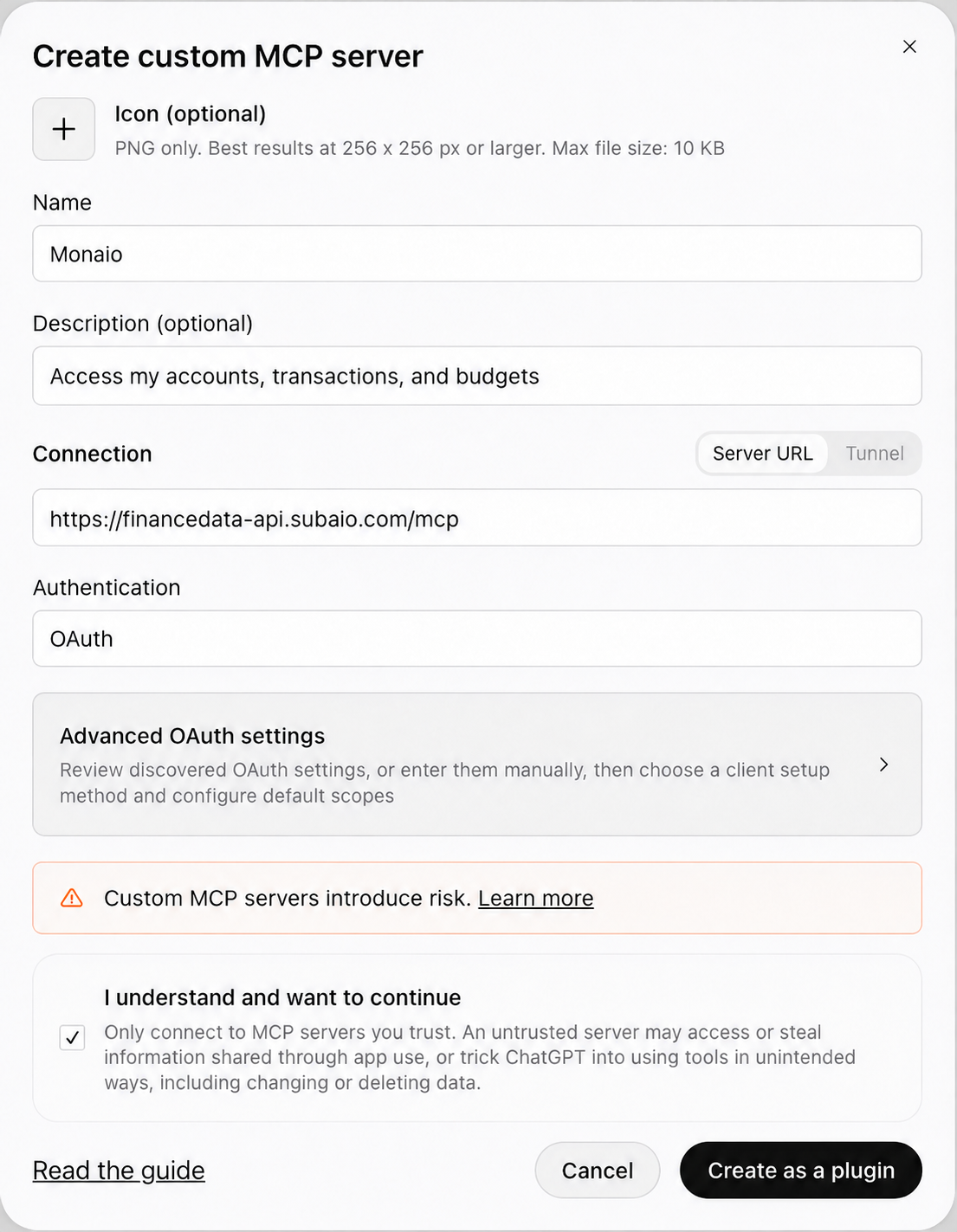
Open Plugins, select the plus button, then Add custom MCP server.
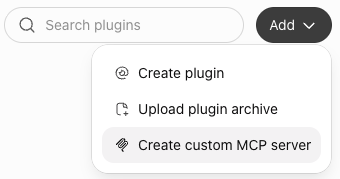
Enter the connection address
Name it Monaio, paste the address below into Server URL and choose OAuth for authentication. Read the access notice, select I understand and want to continue, then Create as a plugin.
Connection addresshttps://financedata-api.subaio.com/mcp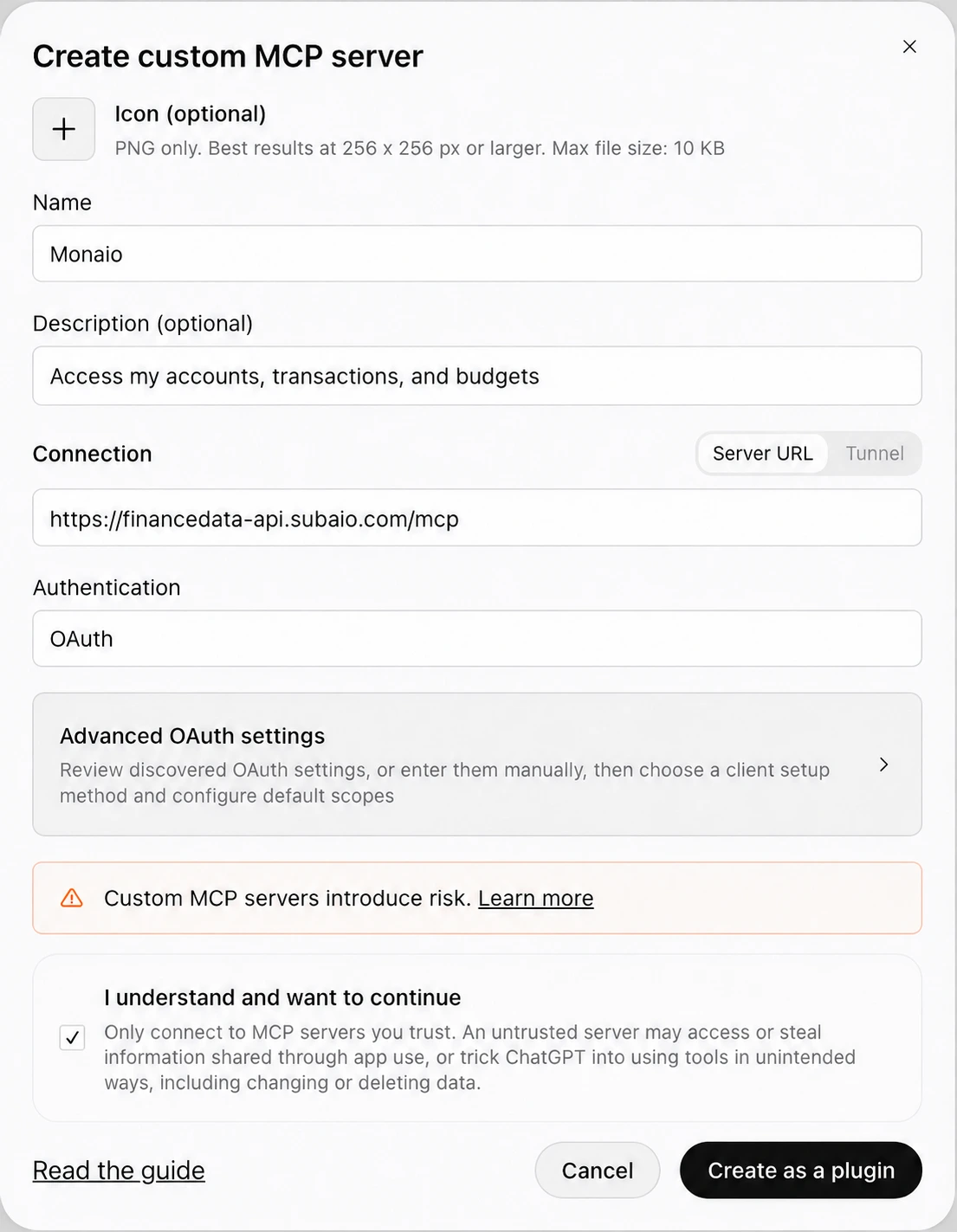
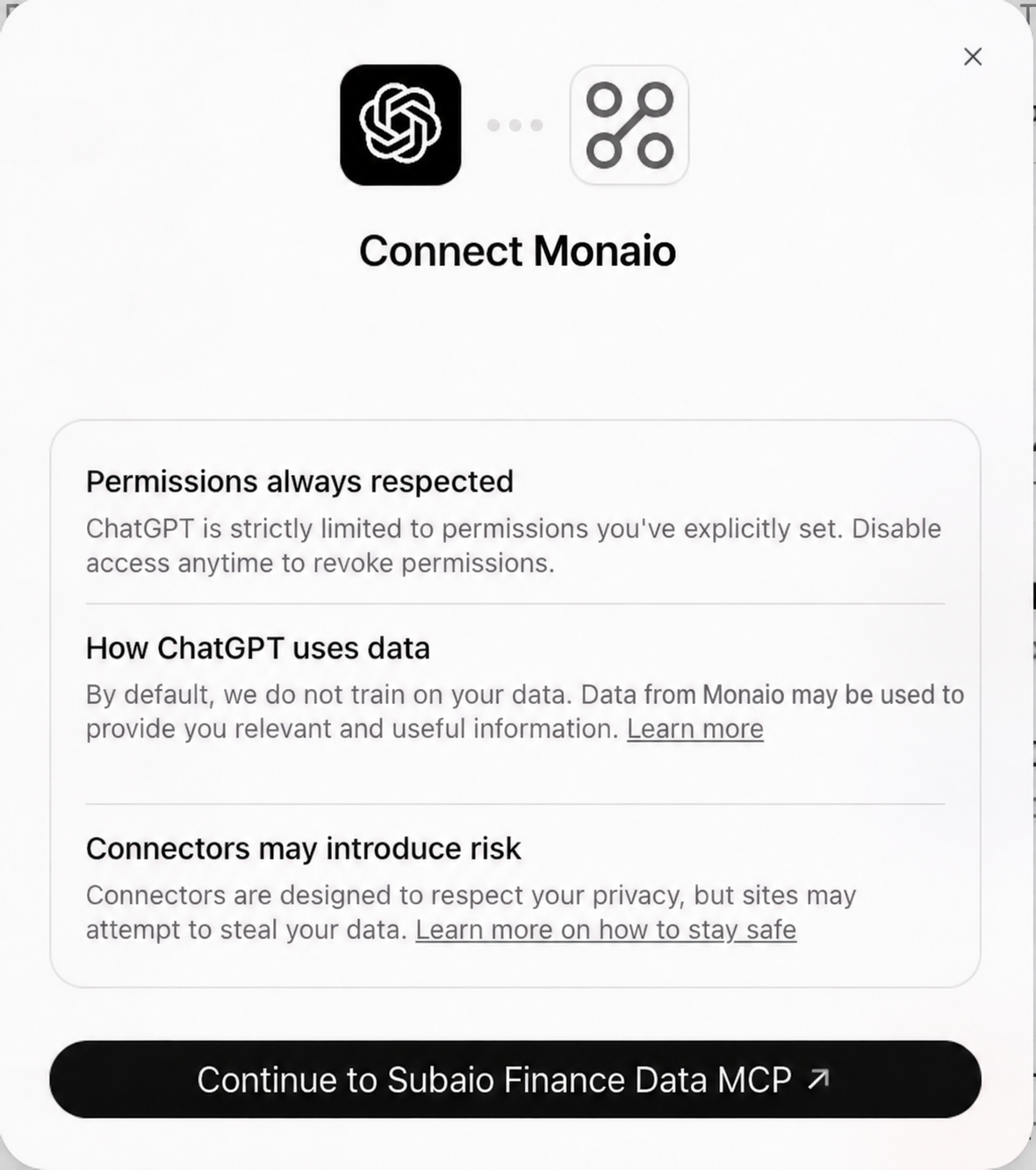
Sign in with your Monaio account
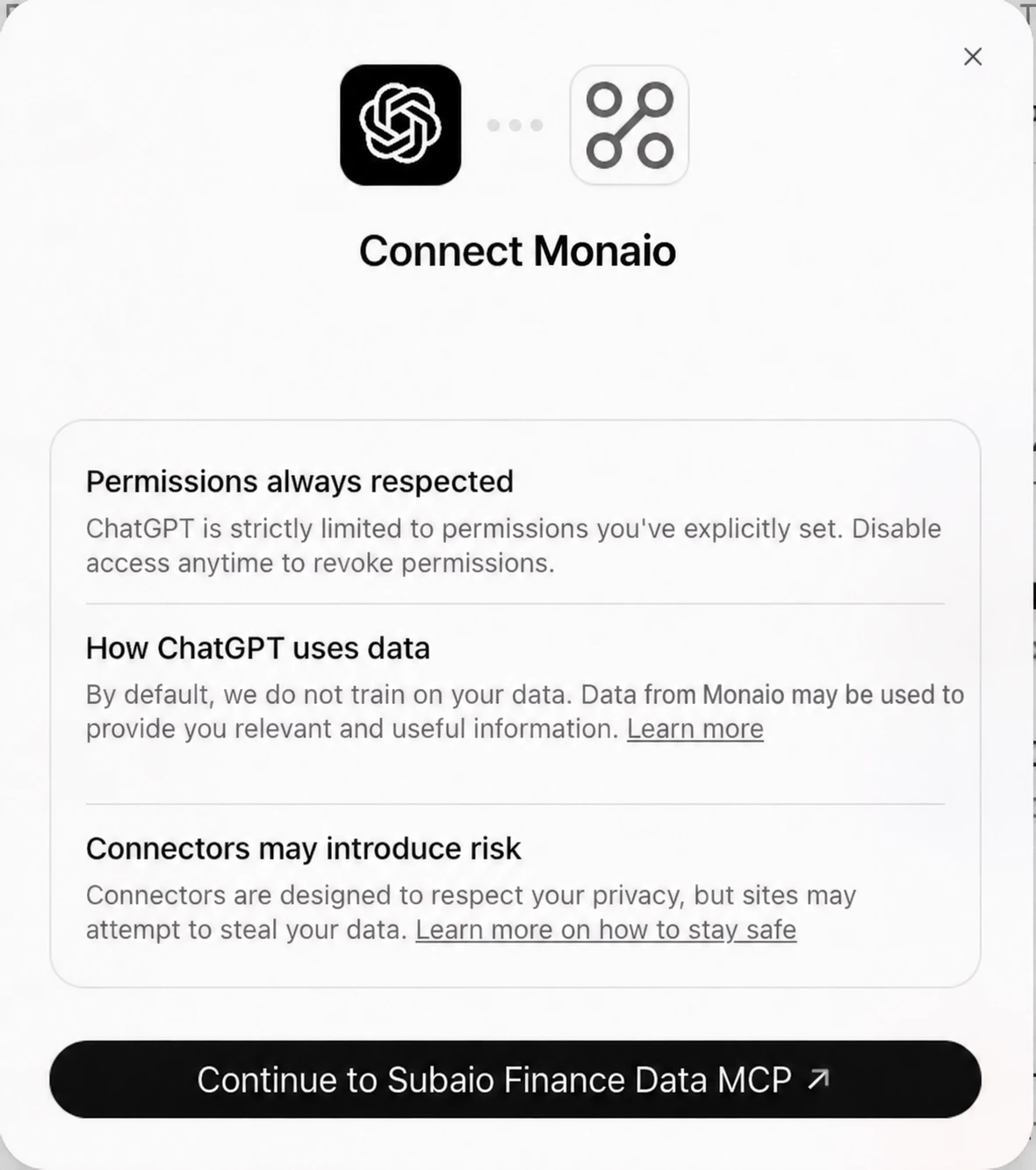
Select Continue to Subaio Finance Data MCP. Sign in in the window that opens, review the access and choose the profile with your own bank data.
Ask your first question
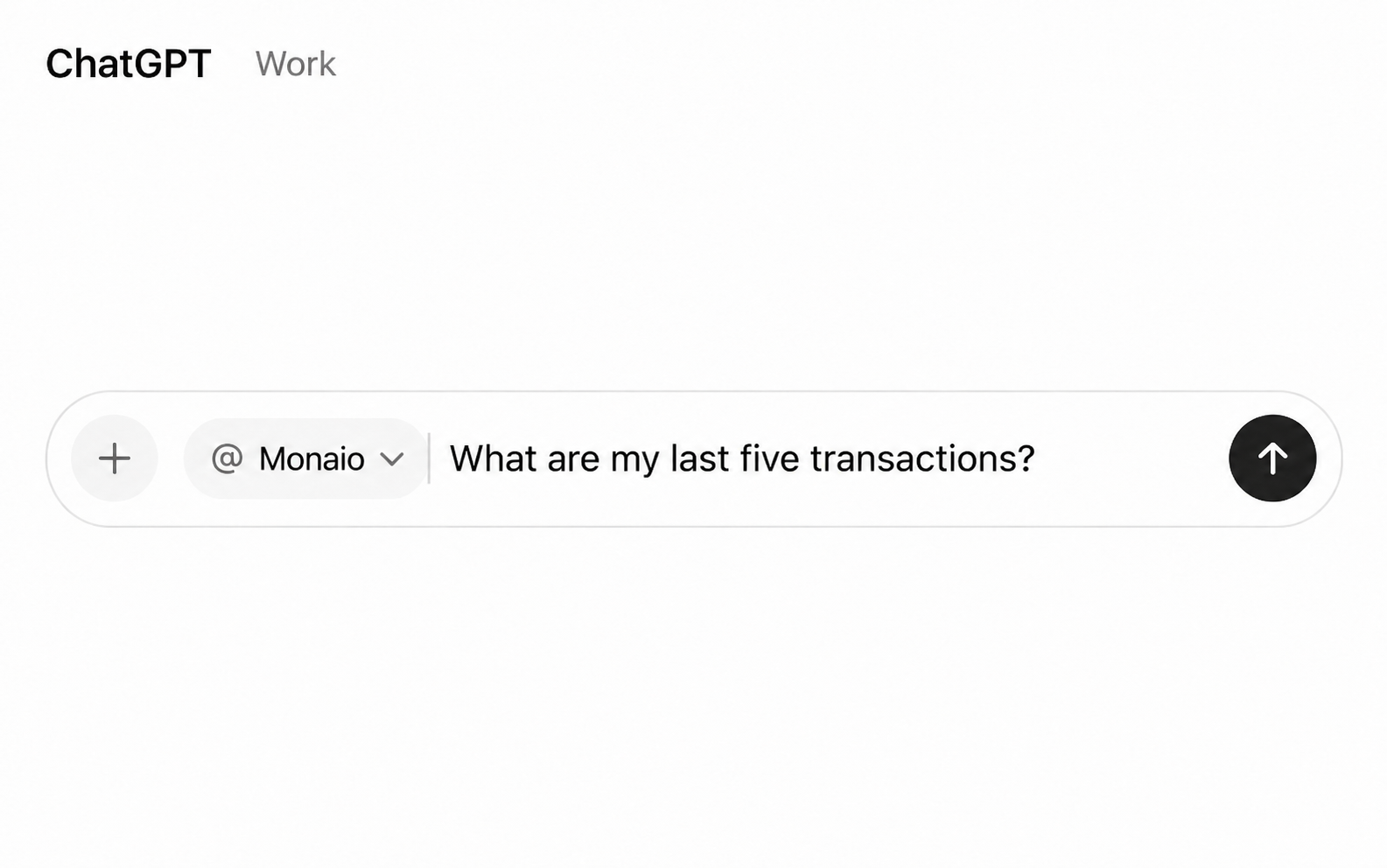
Find the connection in your personal plugins and install it if prompted. Open a conversation in Work, type @ and select Monaio. Try the question below.
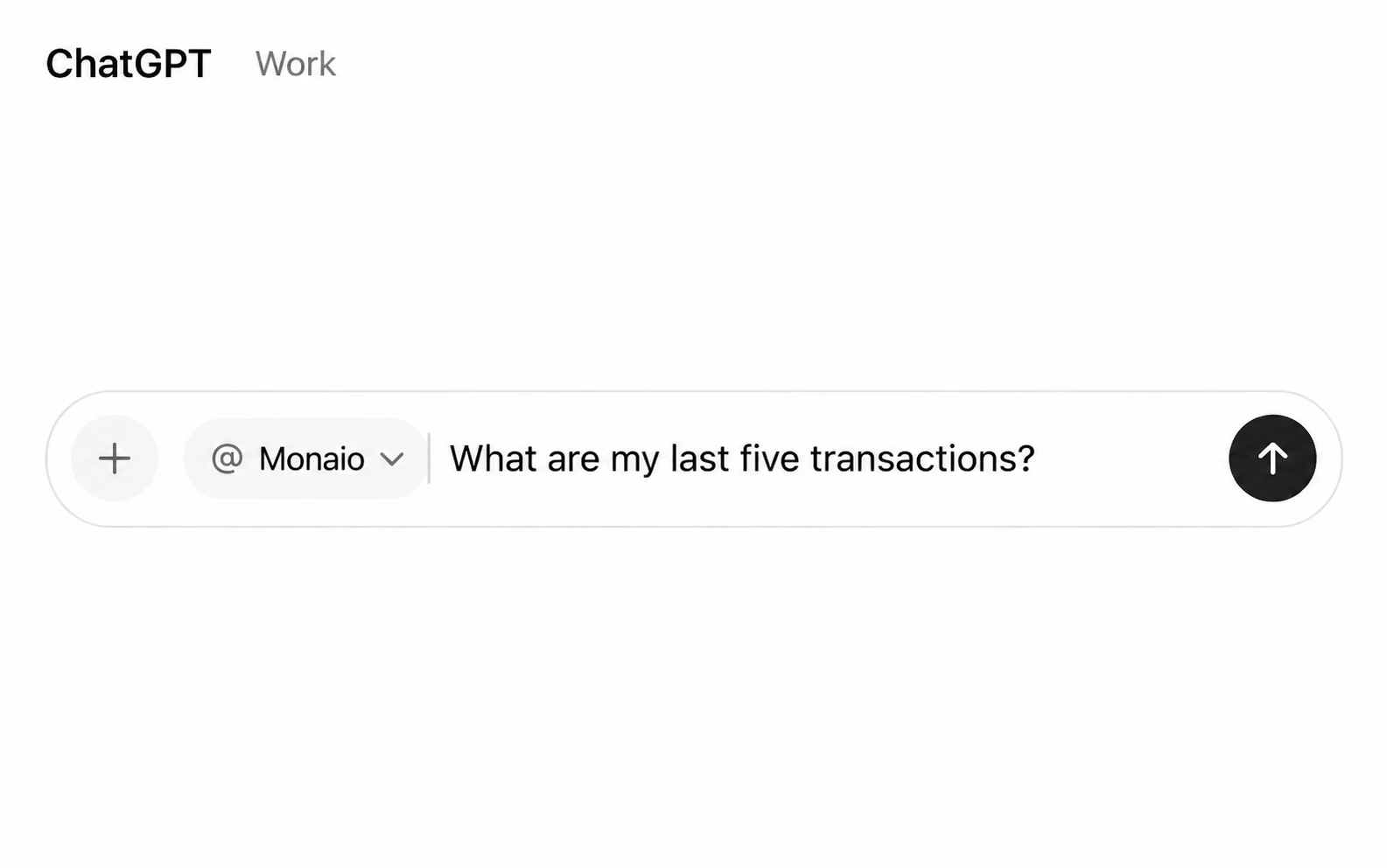
Illustration Test the connection
“What are my last five transactions?”
You’re ready!
Once you receive an answer based on your own transactions, your connection is ready. You could ask:
- How much have I spent on groceries this month?
- Which subscriptions am I paying for?
- When did I last pay the dentist?
